Orbiter 2010 problem: "Side by side configuration is incorrect"

Warped

New member
Joined
Dec 7, 2009
Messages
54
Reaction score
0
Points
0
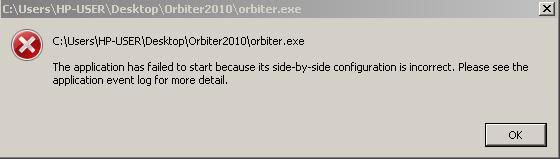
I was trying to install orbiter 2010 onto my laptop, but it had an error and would't let me finish the installation. So I installed Orbiter 2010 on my desktop, then I copied the files onto a memory drive and put the files on my laptop. I tried to start up orbiter, but this came up:
problem2.jpg


Where would this log be located?

EDIT

Now that I think about it, this thread might have been better in the ORBITER 2010 section:shifty:
 
Last edited:
The application event log is in your administrative tools, however you don't need to go there to fix this issue. I have just posted on this here.
 
The application event log is in your administrative tools, however you don't need to go there to fix this issue. I have just posted on this here.

I ran the program, and tried to install the runtime, but this came up

problem.jpg
 
Hmm, that's not an error I've ever seen before. What version of windows are you running?

---------- Post added at 19:11 ---------- Previous post was at 19:05 ----------

Afterthought; Which version of Orbiter did you download, the .zip or the .msi? The MSI version should handle the installation of the runtimes automatically.
 
I had the same message a couple or 3 weeks ago when taking a working copy of the 2010 Orbiter from laptop to a desktop. I did the same thing, copied the folder onto a flash drive and loaded it into the desktop. Eventually I just took the zip file that one downloads (from the laptop and pasted to the desktop of the desktop computer) and created the Orbiter installation like I had just downloaded it. That cleared up that particular "side-by-side" problem.
 
Hmm, that's not an error I've ever seen before. What version of windows are you running?

Windows Vista

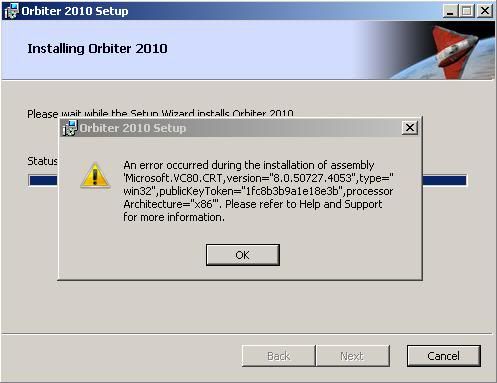
As for trying to install the program using MSI, I finished the installation, but this error popped up:
problem3.jpg


-----------------
@ Flytandem

I'll try out what you said.
 
Last edited:
Ok, this -could- be related to security settings on the redist file itself - Try opening properties on that file.

If you see a line like "This file came from another computer and may be blocked..." hit the Unblock button and try again. Also verify you're running it as an administrator.
 
I think this message is connected to "Install\testvcr.exe", which contains the:
Code:
<assemblyIdentity type="win32" name="Microsoft.VC80.CRT" version="8.0.50727.4053" processorArchitecture="x86" publicKeyToken="1fc8b3b9a1e18e3b"></assemblyIdentity>
in its manifest resource, and the content of this assemblyIdentity is displayed in the error message.

Though, I can't reproduce this issue, so I'm not sure if it's caused exactly by running "Install\testvcr.exe", or something else.
 
Are you sure your Windows account has administrator permissions?
 
Ok, this -could- be related to security settings on the redist file itself - Try opening properties on that file.

If you see a line like "This file came from another computer and may be blocked..." hit the Unblock button and try again. Also verify you're running it as an administrator.

I found that I came from another computer and unblocked it, but the error still came up.

Also, I can't seem to find a way to run it as administrator. I tried several methods, but i couldn't seem to get it.
 
Try this:

1. Open Windows Explorer.
2. Navigate to the setup file.
3. Right-click on it to pop up a menu. Then left-click on "Run as Administrator".

It should, however, automatically prompt you for administrator permissions even if you just run it normally. If it's not doing that, it makes me suspect that your user account does not have administrative permissions, and so that is why the install fails.
 
Look at the post dbeachy1 made, are you sure you have the correct power on the computer?

Windows has two main types of user accounts, Administrators and Standard (limited) users. If your account is one of the latter, you will not be able to install the vcredist files and you'll need to get someone with administrative privileges to do it.
 
Try this:

1. Open Windows Explorer.
2. Navigate to the setup file.
3. Right-click on it to pop up a menu. Then left-click on "Run as Administrator".

It should, however, automatically prompt you for administrator permissions even if you just run it normally. If it's not doing that, it makes me suspect that your user account does not have administrative permissions, and so that is why the install fails.

Normally, I can run programs as Administrator, but when I right-click on orbiter100606, "run as administrator" doesn't show up.
 
What I mean is, click on the "vcredist_x86.exe" setup file and run that as administrator.
 
What I mean is, click on the "vcredist_x86.exe" setup file and run that as administrator.
Ohhhhhhhhhhhhhhhhhhhhhhhhhhhh:beathead: :beathead: :beathead:
unfortunately, running that as admin doesn't work either:(

EDIT

Sorry for the non-descriptive title.

UPDATE

I tried what Flytandem said, but it still gave me the "side by side" problem. I looked for the "vcredist" file but it wasn't in the zip folder.
 
Last edited:
Are you sure your Windows account has administrator permissions?

I'm starting to think this is the real question. You will need to have an administrator level account in Windows to install the redist files.

Beyond that, I'm something at a loss for what to suggest, it's not an error I've ever encountered before.
 
I'm starting to think this is the real question. You will need to have an administrator level account in Windows to install the redist files.

Beyond that, I'm something at a loss for what to suggest, it's not an error I've ever encountered before.

I checked, and my account is an administrator.

I think I might try to install the redist files onto my other computer, then take the files and put them on to my laptop and see if that will work.
 
I checked, and my account is an administrator.
Having account with administrator rights isn't sufficient in Windows Vista or newer, to run a program as Administrator.

With UAC enabled, all programs that don't have embedded in a manifest resource, that they are installers or need administrator rights, will be run with restricted rights. This shouldn't apply to .msi files though, because they're installation packages by design.

So, if you don't see a Windows shield overlay on an icon of the program, and you want it to be executed with elevated administrator rights, right click on it and choose "Run as Administrator".
 
Having account with administrator rights isn't sufficient in Windows Vista or newer, to run a program as Administrator.

With UAC enabled, all programs that don't have embedded in a manifest resource, that they are installers or need administrator rights, will be run with restricted rights. This shouldn't apply to .msi files though, because they're installation packages by design.

So, if you don't see a Windows shield overlay on an icon of the program, and you want it to be executed with elevated administrator rights, right click on it and choose "Run as Administrator".

I did run it as an administrator. I can run the program, but it gets an error when it's done, regardless of how I run it.

EDIT

I have a question;
when the C++ 2005 redistributable installer is done installing, does it make a folder anywhere that it keeps the installed files in? Because I tried finding the files on my main computer with the hope of sending it to my laptop, but I couldn't find any there.
 
Last edited:
Back
Top