
What is the lack of Orbiter compared to flight simulators? We miss a possibility to display values, light led's and so on.
With LUA we can do this! We can now talk to a serial device and this is how to do it (works under XP and Windows 7).
What do we need.
1. Orbiter (of course )
)
2. A free COM port (including USB to serial converters)
3. A serial device awaiting our commands, i.e. microcontroller like Arduino (I'm using a PIC16F877).
First initialize the COM port. I tried to do this within my LUA script. It worked, but it puts Orbiter in background and I have to manualy put it back in front. This sometimes results in graphical errors. So the best is to do this in a DOS box before starting Orbiter. I'm using COM2 in this example (do not use COM numbers above 9):
mode COM2:57600,n,8,1
This sets COM2 to use 57600 Baud, no parity, 8 databit, 1 stopbit.
Next step is to create a LUA script which is sending data to the serial device. We can do this in Notepad. In this example i am sending the RCS status periodicaly to the serial device, assuming a serial target device, which is setting its ports/leds according to the received value.
And this is the script:
-- begin of script
local debug = false -- if you don't want a endless loop set debug to true
local schl = 50 -- and schl to the number of loops you want
local mycom = "COM2" -- put in your COM port here
local mybaud = "57600" -- your baud rate
local simspd = 0.2 -- wait time between serial datagrams
local status1, old_status1 -- define variables for LED status
old_status1 = -1
v = vessel.get_focusinterface() -- get a vessel handle
function serout(_sout) -- write stuff to serial port
wserial:write(_sout) -- fills the serial buffer
wserial:flush() -- send the serial buffer
end
wserial=io.open(mycom,"w+b") -- this opens the COM in binary mode
repeat
status1 = 0
if v:get_rcsmode() == RCSMODE.OFF then -- checking RCS mode
status1 = status1 + 2 -- LED 2 on
else
status1 = status1 + 1 -- LED 1 on
end
if v:get_rcsmode() == RCSMODE.ROT then
status1 = status1 + 8 -- LED 4 on
end
if v:get_rcsmode() == RCSMODE.LIN then
status1 = status1 + 4 -- LED 3 on
end
if status1 ~= old_status1 then -- to reduce traffic, send value only if it has changed
old_status1 = status1 -- save values
sendit=string.char(status1)
serout(sendit)
end
proc.wait_sysdt(simspd) -- wait a little bit, otherwise we would stress the serial port (and Orbiter)
if debug then
schl = schl - 1
end
until schl<=1 -- repeat that
wserial:close(mycom) -- this closes the COM
-- end of script
Now save "myscript.lua" in the Orbiter\Script directory.
Run the mode command as described before. Run Orbiter with a scenario at your choice. Open either the LUA console or the LUA mfd and start the script run('myscript'). And don't forget to switch on your serial device.
LUA isn't talking much about an error in scripts. It says only "execution error". In this case try to reduce steps in the script and use term.out commands.
I think you can do similar things also with the printer port (i.e. LPT1). Try it, I don't have any on my PC.
Have fun
widdernix
---------- Post added at 08:43 PM ---------- Previous post was at 05:48 PM ----------
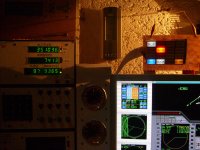
To give you an overview what's possible, I added my current script.
View attachment sd.txt
rename it to .lua
With LUA we can do this! We can now talk to a serial device and this is how to do it (works under XP and Windows 7).
What do we need.
1. Orbiter (of course
)2. A free COM port (including USB to serial converters)
3. A serial device awaiting our commands, i.e. microcontroller like Arduino (I'm using a PIC16F877).
First initialize the COM port. I tried to do this within my LUA script. It worked, but it puts Orbiter in background and I have to manualy put it back in front. This sometimes results in graphical errors. So the best is to do this in a DOS box before starting Orbiter. I'm using COM2 in this example (do not use COM numbers above 9):
mode COM2:57600,n,8,1
This sets COM2 to use 57600 Baud, no parity, 8 databit, 1 stopbit.
Next step is to create a LUA script which is sending data to the serial device. We can do this in Notepad. In this example i am sending the RCS status periodicaly to the serial device, assuming a serial target device, which is setting its ports/leds according to the received value.
And this is the script:
-- begin of script
local debug = false -- if you don't want a endless loop set debug to true
local schl = 50 -- and schl to the number of loops you want
local mycom = "COM2" -- put in your COM port here
local mybaud = "57600" -- your baud rate
local simspd = 0.2 -- wait time between serial datagrams
local status1, old_status1 -- define variables for LED status
old_status1 = -1
v = vessel.get_focusinterface() -- get a vessel handle
function serout(_sout) -- write stuff to serial port
wserial:write(_sout) -- fills the serial buffer
wserial:flush() -- send the serial buffer
end
wserial=io.open(mycom,"w+b") -- this opens the COM in binary mode
repeat
status1 = 0
if v:get_rcsmode() == RCSMODE.OFF then -- checking RCS mode
status1 = status1 + 2 -- LED 2 on
else
status1 = status1 + 1 -- LED 1 on
end
if v:get_rcsmode() == RCSMODE.ROT then
status1 = status1 + 8 -- LED 4 on
end
if v:get_rcsmode() == RCSMODE.LIN then
status1 = status1 + 4 -- LED 3 on
end
if status1 ~= old_status1 then -- to reduce traffic, send value only if it has changed
old_status1 = status1 -- save values
sendit=string.char(status1)
serout(sendit)
end
proc.wait_sysdt(simspd) -- wait a little bit, otherwise we would stress the serial port (and Orbiter)
if debug then
schl = schl - 1
end
until schl<=1 -- repeat that
wserial:close(mycom) -- this closes the COM
-- end of script
Now save "myscript.lua" in the Orbiter\Script directory.
Run the mode command as described before. Run Orbiter with a scenario at your choice. Open either the LUA console or the LUA mfd and start the script run('myscript'). And don't forget to switch on your serial device.
LUA isn't talking much about an error in scripts. It says only "execution error". In this case try to reduce steps in the script and use term.out commands.
I think you can do similar things also with the printer port (i.e. LPT1). Try it, I don't have any on my PC.
Have fun
widdernix
---------- Post added at 08:43 PM ---------- Previous post was at 05:48 PM ----------
To give you an overview what's possible, I added my current script.
View attachment sd.txt
rename it to .lua
Last edited:


 now that would be positively funny


